Paraprofessional and Auxiliary Transitions: Detail Table Newly Hired Teachers
The Newly Hired Teachers Detail Table provides school systems with candidate specific information for newly hired paraprofessional and auxiliary staff including, their role in the prior year, certification at hire, and program or population served. By reviewing this data, school systems can track transitions to teaching trends among paraprofessional and auxiliary staff, address staffing gaps, and plan for future recruitment needs.
Navigate to the TalentED Dashbaords
-
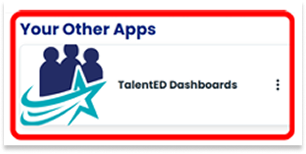
Select “TalentED Dashboards” from the Apps menu.
-
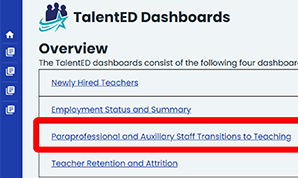
Select “Paraprofessional and Auxiliary Staff Transitions to Teaching” from the dashboard Overview list.
-
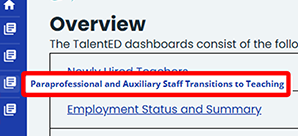
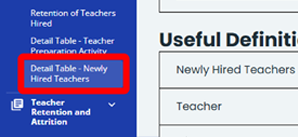
You may also select a dashboard from the blue margin menu.
-
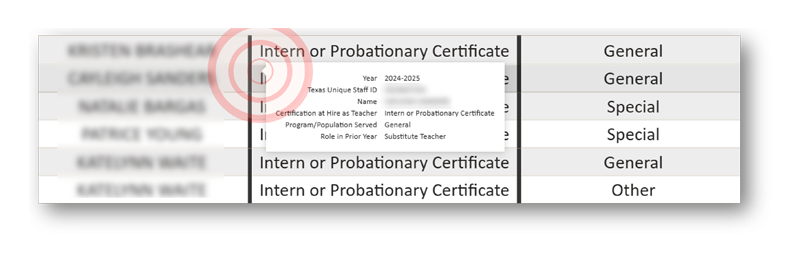
Select “Detail Table- Newly Hired Teachers” from the Paraprofessional and Auxiliary Staff Transitions to Teaching Dashboard to view a comprehensive list of newly hired paraprofessional and auxiliary staff and individual details including:
- Texas Unique Staff ID
- Name
- Certification at Hire as Teacher
- Program/Population Served
- Role in Prior Year
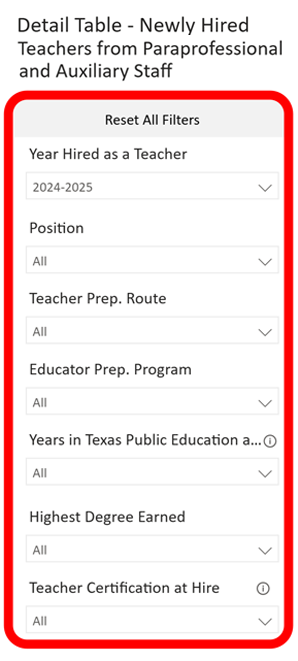
Filter Detail Table of Newly Hired Teachers from Paraprofessional and Auxiliary Staff
-
Use the Filter Selection Panel to explore the Detail Table of Newly Hired Teachers from Paraprofessional and Auxiliary Staff data. You will be able to filter data according to:
- Year Hired as a Teacher
- Position
- Teacher Prep. Route
- Educator Prep. Program
- Years in Texas Public Education at Hire
- Highest Degree Earned
- Teacher Certification at Hire
-
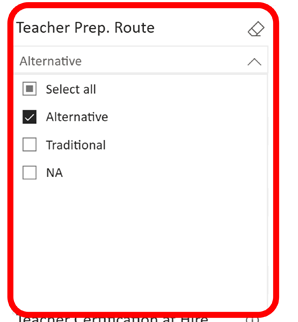
Click the arrow icon on any filter in the Selection Panel to view a list of options for viewing the Detail Table for Newly Hired Teachers from Paraprofessional and Auxiliary Staff data.
- Click the box(es) next to the options you want to view. Multiple boxes can be selected at one time. You can also click “Select all”.
- To clear a selection, uncheck the checkbox or click the eraser icon to clear all the checkboxes in that filter.
- To start over, you can click the “Reset All Filters” button. This
- will clear all selections that have been made in the Filter Selection Panel.
-
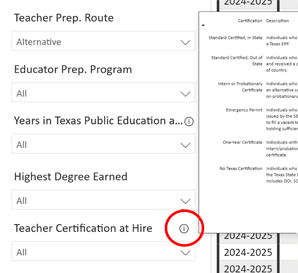
Hover the cursor over the “information icon” to view a detailed description and information about that filter.
Detail Table for Newly Hired Teachers from Paraprofessional and Auxiliary Staff
-
The Detail Table of Newly Hired Teachers from Paraprofessional and Auxiliary Staff provides a comprehensive listing of teacher information which can be sorted using the arrow in any column heading. Use the filters along the left-hand side to dynamically change the table information.
- Use the arrows in any column to sort data
- Use the table scroll bar on the right to view additional table details.
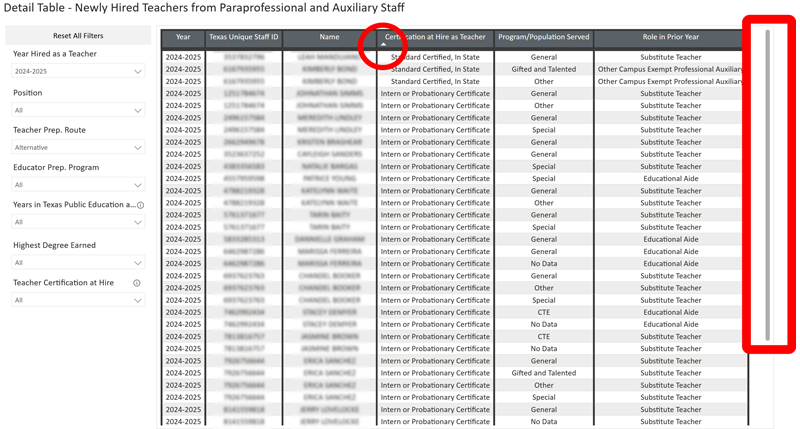
-
Hover the cursor over an individual row in the table to view a detail summary pop-up for any teacher on the list.