Accessing the Dashboards
Access is available online through the Texas Education Exchange.
Who Can Access the Dashboards
Access to TalentED Dashboards is designed for district and charter school staff who work with hiring and staffing data. To maintain security and data integrity, only users with approved district or charter school email addresses tied to the district’s identity provider will be granted access.
Identify a Technical Administrator
Each district or charter school will designate a Technical Administrator who will interact with The Exchange during the initial onboarding and manage access to the Texas Education Exchange and TalentEd dashboards.
-
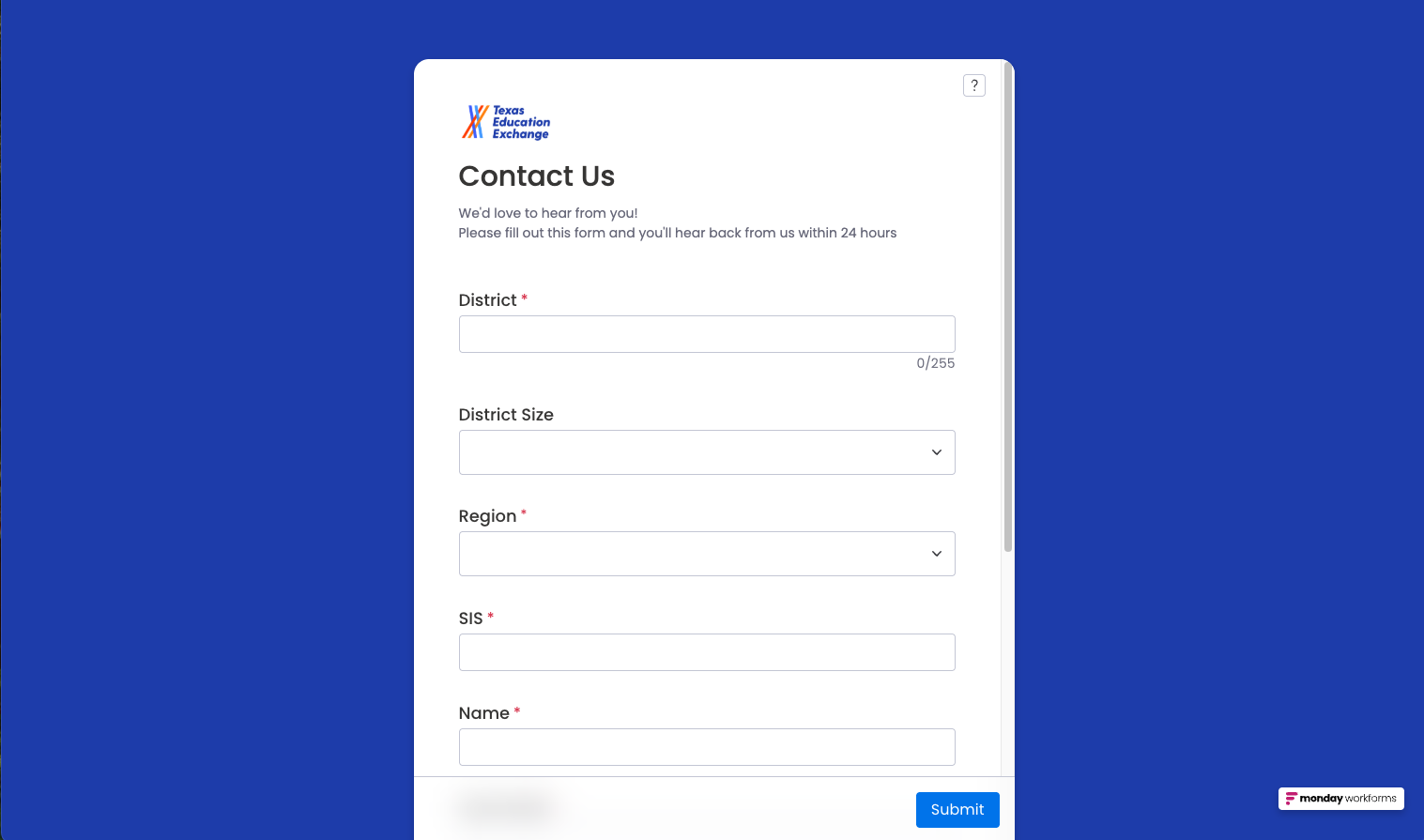
Visit the Texas Education Exchange Contact Us form to share the technical administrator’s name, email address, and phone number with The Exchange.
-
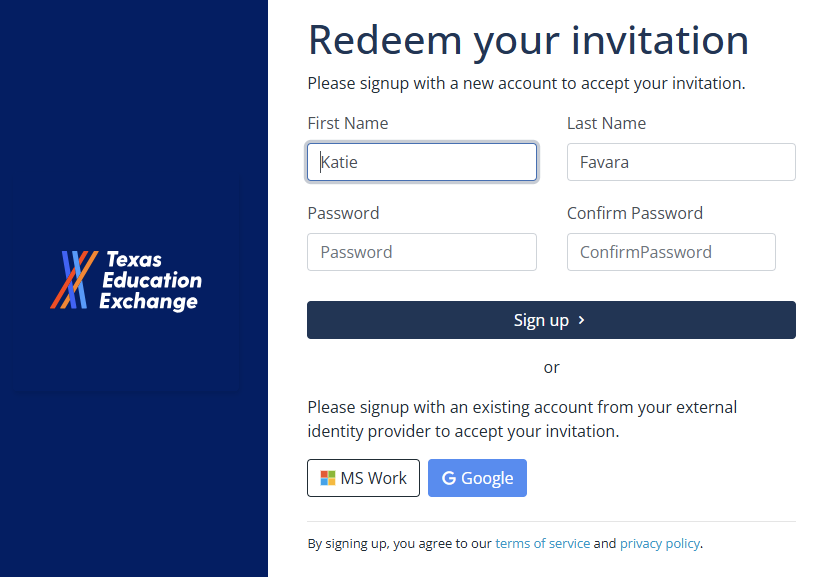
The Technical Administrator will receive a welcome email from no-reply@txedexchange.net with instructions for setting up your account.
The email is time sensitive, so if the technical administrator does not see it, they should check spam and junk folders.
Manage Users
-
Since maintaining app and data security is crucial, effective user management plays a significant role. As the technical administrator, you will have the District Admin role, which allows you to grant app and data access to users.
-
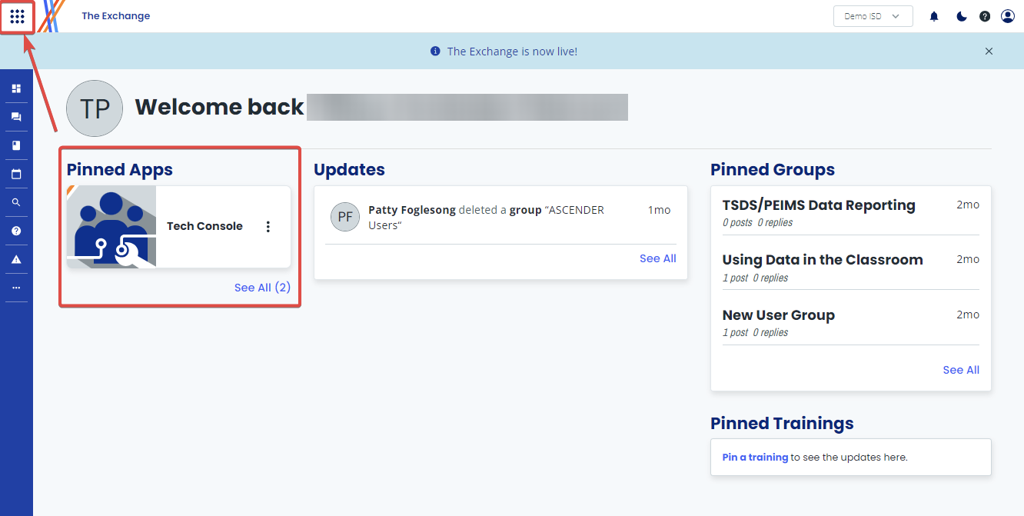
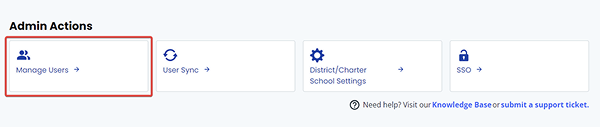
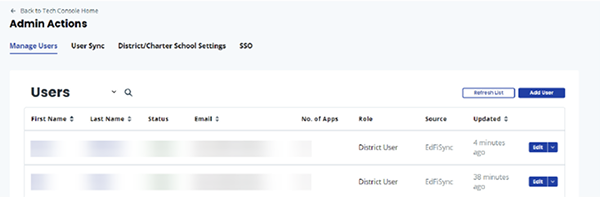
To access the Manager Users section, go to the Tech Console's Admin Actions at the top of the page.
-
After clicking on the section, you will get a list of users currently associated with the district or charter school account. This page will display:
- First Name
- Last Name
- Status - This will display if the user is currently active or inactive.
- Email - This email is gathered from the ODS and associated with your identity provider.
- Number of Apps - This will display the number of app licenses associated with this user account.
- Role - This shows either the District Admin or the District User. The District Admin has access to the Tech Console, and the District User does not.
- Source - This will show how users gain access to your The Exchange account. The two options currently are Ed-Fi and Local. Ed-Fi denotes these users came in via the SSO.
- Updated - This will show the most recent modification to the specific user.
Add Users
-
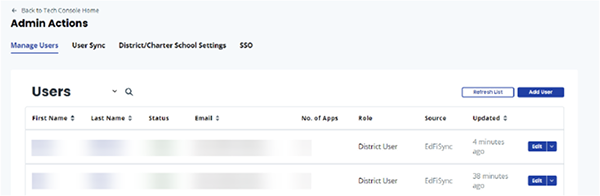
After you click 'Add User', a panel will appear where you have the option to add a completely new user.
-
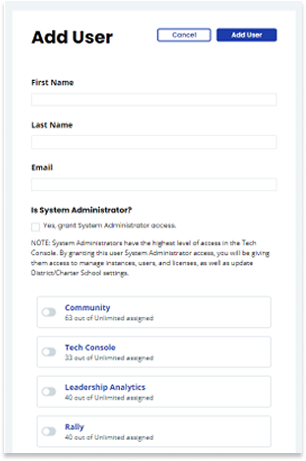
In the Add User panel, you will need to provide the Tech Console with the following details:
- First Name
- Last Name
- Emails - Only add emails associated with your district or charter school’s identity provider.
- Is System Administrator? - This checkbox grants access to the user to be a system administrator. There should only be one or two administrators per district.
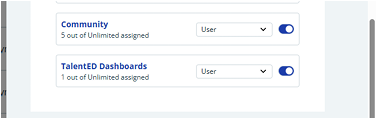
- Applications/License Types - The bottom sections allow you to manage users, and their access to specific applications depends on the licenses and the number of licenses added to your district or charter school. This section allows you to grant access to those applications accordingly.
-
For districts using only the TalentEd Dashboards and not participating as full Exchange members, the only applications that should be activated are TalentEd and Community.
-
Click the ‘Add User’ button to save.
District Users Account
-
Your account will be created by your district’s Technical Administrator.
-
Watch for a setup email with instructions to complete your registration.
-
If you don’t receive an email, contact your Technical Administrator to confirm your account has been created.
Sign-In
Once your account is active, follow these steps to sign in:
-
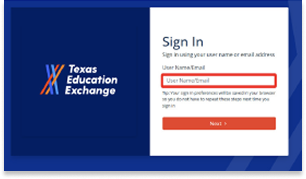
Sign into the Texas Education Exchange. Enter your username and password to login to the Texas Education Exchange to access the TalentED Dashboards. If prompted, complete any required authentication steps (e.g., multifactor authentication).
-
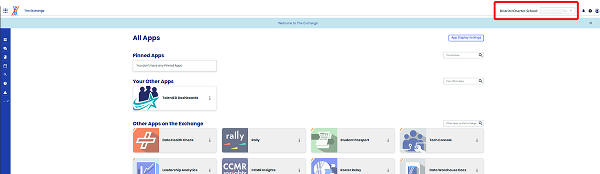
After logging in, verify that the correct district or charter name appears in the district selection box at the top right of the screen.
Access the TalentED Dashboards
The TalentED Dashboards can be found within The Exchange once you are logged in:
-
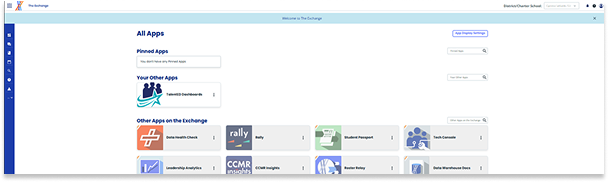
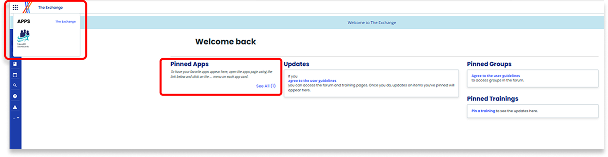
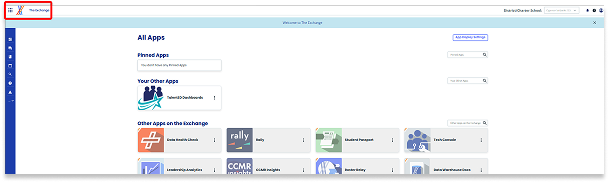
From the home screen, look under Pinned Apps and select 'See All' to view all applications.
Tip: If you use the dashboards frequently, pin them to your Exchange home screen for quick access.
-
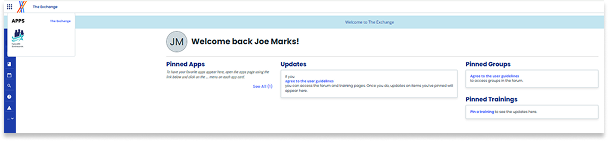
You can also open the waffle menu in the upper-left corner to browse available apps.
-
Choose TalentEd Dashboards to open the dashboard landing page.
Troubleshooting Access Issues
If you are unable to access the dashboards, follow these steps:
-
Verify your account: Confirm with your Technical Administrator that your account has been created and assigned the correct permissions.
-
Check your email domain: Only approved district or charter school email addresses tied to your district’s identity provider will work.
-
Browser refresh: Log out and back in or clear your browser cache to resolve display issues.
-
If you continue to experience problems, contact your Technical Administrator for further assistance.
If the issue cannot be resolved locally, your Technical Administrator may reach out to the state support team for further assistance.