Navigation Overview
Learn how to move smoothly through the TalentED Dashboards and find the data you need. This guide walks you through logging in, selecting your district, navigating the main dashboard menu, and understanding how each dashboard is organized. You’ll also see where to find key terms, essential questions, and data source details so you can confidently locate and access workforce information for hiring, staffing, and retention decisions.
Navigate to the TalentED Dashboards
-
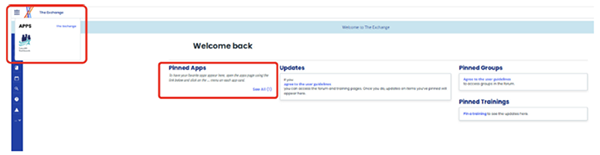
On the Exchange Community landing page, you may select the 'See All' link under the Pinned Apps section or use the waffle menu in the upper-left corner to select your available Exchange Apps.
-
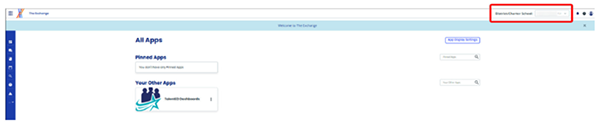
Use the District/Charter School selection box in the upper right corner to verify that you are viewing the correct district/charter school dashboards.
TalentEd Dashboard Reference Page
-
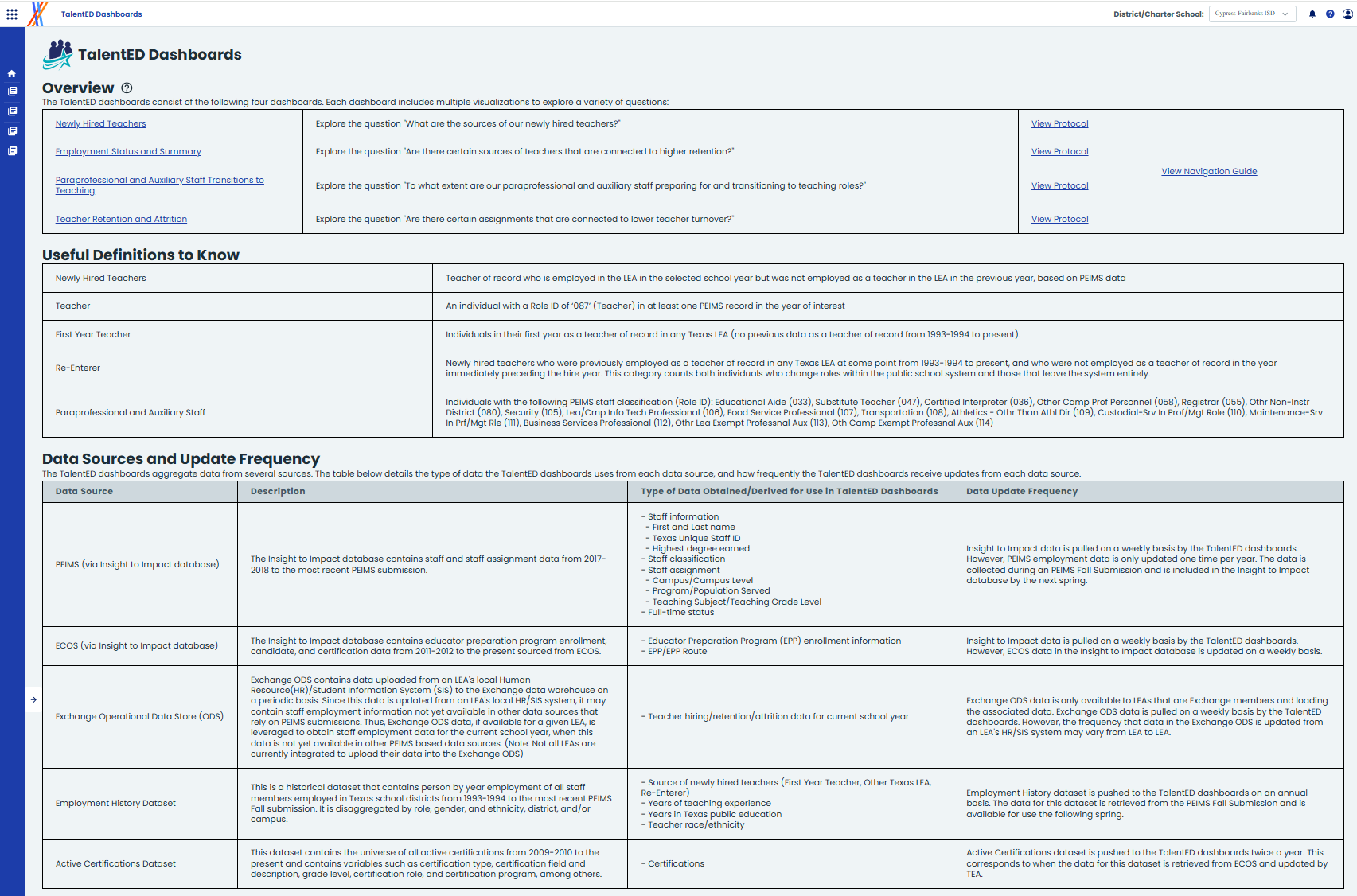
Once you have selected the TalentED Dashboards from the Exchange Apps, you will see the main dashboard landing page. This resource page is available as a support reference during dashboard use.
-
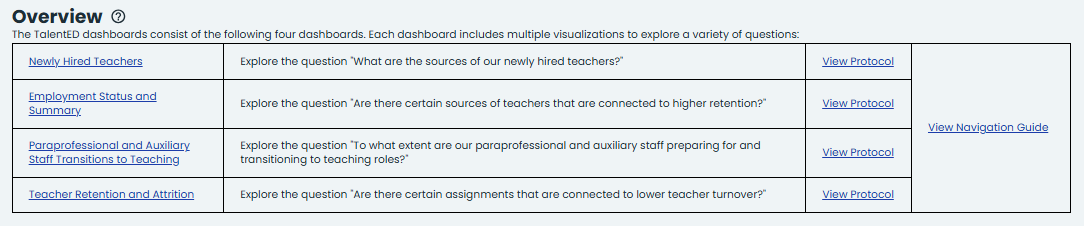
The Overview section lists each of the four dashboard links and their adjoining essential questions.
-
The next section on the main reference page is Useful Definitions to Know. Here you will find a listing of key terms and their definitions used throughout the dashboards.

-
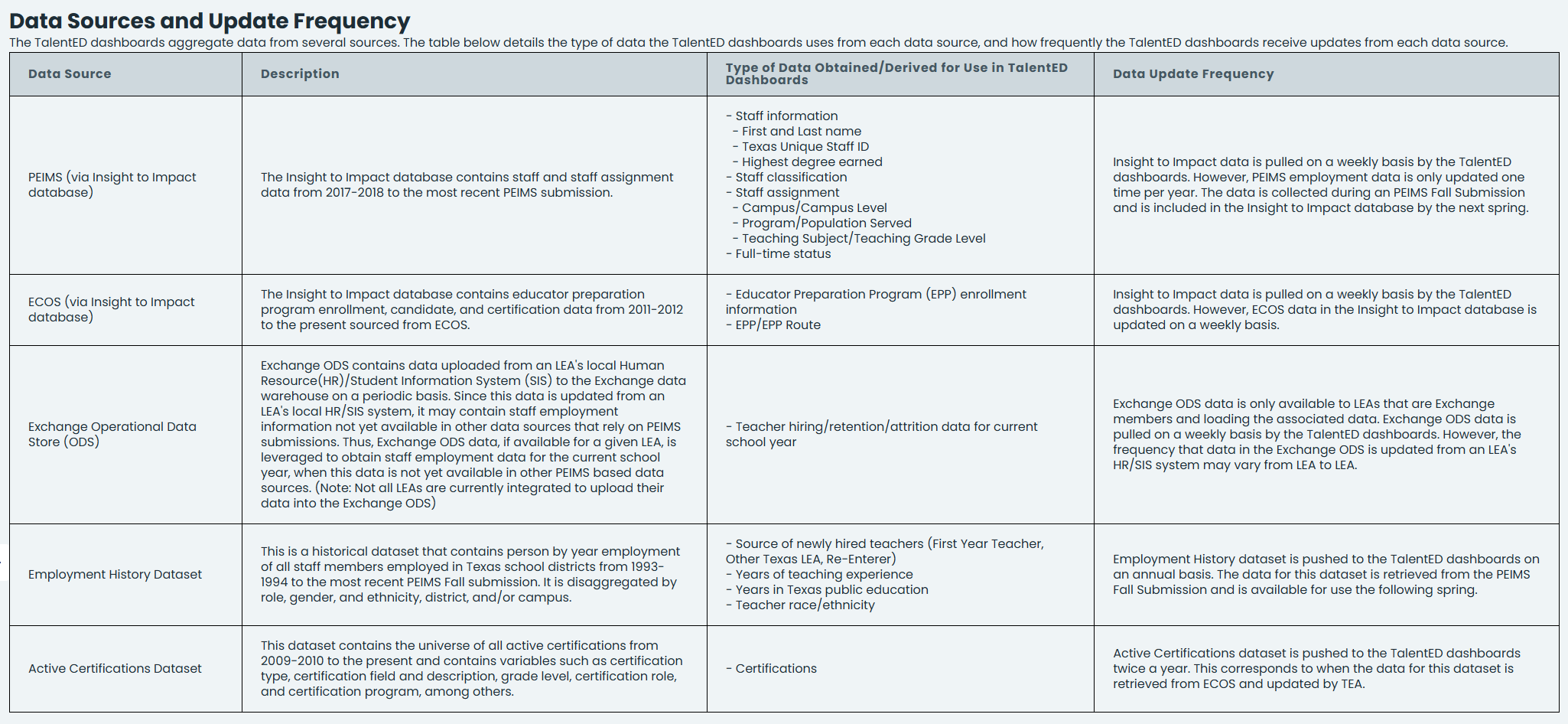
The final section of the main reference page is Data Sources and Update Frequency. Here you will find a listing of the following:
- Data Sources
- Description
- Type of Data Obtained/Derived for Use in TalentED Dashboards
- Data Update Frequency
Selecting Dashboards
-
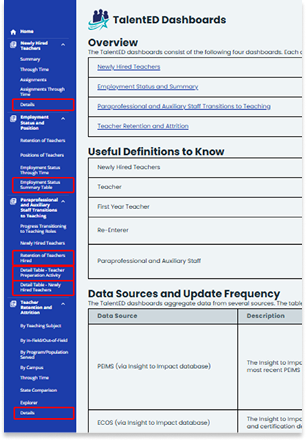
Use the dashboard links in the Overview section to view a dashboard or use the menu options on the left blue margin to expand each dashboard and select an individual dashboard page.
NOTE: The dashboard pages outlined in red (below) are restricted to specific user roles, user credentials and account access.