
Teacher Retention and Attrition: By In-Field/Out-of-Field
The Teacher Retention and Attrition by In-Field/Out-Field certification page details teacher retention and attrition rates by previous employed year and whether teachers are teaching within or outside their certification area. By reviewing this data, school systems can identify retention trends by grade level and subject area, address staffing gaps, and plan for future recruitment needs.
Navigate to the TalentED Dashboards
-
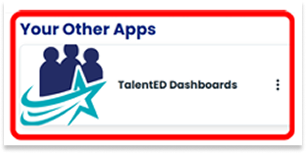
Select “TalentED Dashboards” from the Apps menu
-
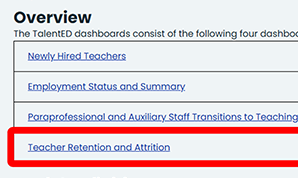
Select “Teacher Retention and Attrition” from the dashboard Overview list.
-
You may also select a dashboard from the blue margin menu.

-
Select “By In-Field/Out-of-Field” from the Teacher Retention and Attrition Dashboard to view data for Teacher Retention and Attrition by Teaching Subject and In-Field or Out-of-Field Teaching in a Texas public school system

Filter Teacher Retention and Attrition by In-Field/Out-of-Field by Teaching Subject Data
-
Use the Filter Selection Panel to explore Teacher Retention and Attrition by In-Field/Out-of-Field by Teaching Subject Data. You will be able to filter data according to:
- Year
- Campus Level
- Campus
- Program/Pop. Served
- Teaching Grade Level
- Teaching Subject
- In-Field/Out -of-Field
- Certification Type
- Years of Teaching Experience
- Teacher Race/Ethnicity

-
Click the arrow icon on any filter in the Selection Panel to view a list of options for viewing Teacher Retention and Attrition by In-Field/Out-of-Field by Teaching Subject data.
- Click the box(es) next to the options you want to view. Multiple boxes can be selected at one time. You can also click “Select all”.
- To clear a selection, uncheck the checkbox or click the eraser icon to clear all the checkboxes in that filter.
- To start over, you can click the “Reset All Filters” button. This will clear all selections that have been made in the Filter Selection Panel.

-
Hover the cursor over the “information icon” to view a detailed description and information about that filter.

View Rates of Teacher Retention and Attrition from Previous Year
-
The first visualization under the By Teaching Subject Tab is titled “Rates of Teacher Retention and Attrition from Previous Year.” The bar graph indicates the total count and percentage of teachers retained from the previous year. Use the filters along the left-hand side to dynamically change the bar graph’s view.

-
Hover the cursor over a section of the bar graph to view detailed information about the data highlighted.

View Teacher Retention and Attrition by In-Field/Out-of-Field by Teaching Subject
-
The next visualization under the By In-Field/Out-of-Field Tab is titled “Teacher Retention and Attrition by In-Field/Out-of-Field by Teaching Subject.” The bar graphs indicate the total count and percentage of teachers retained by In-Field and Out-of-Field by subject. Use the filters along the left-hand side to dynamically change the bar graph’s view

-
Hover the cursor over a section of the bar graph to view detailed information about the data highlighted.
